Contents
- 1 Introduction
- 2 Key Takeaways
- 3 Why Finding Internal Links to a Page Matters for SEO
- 4 Method 1: Use Google Search Console (Free but Limited)
- 5 Method 2: Manual Browser Search Within WordPress
- 6 Method 3: WordPress Database Query (Technical Approach)
- 7 Method 4: External SEO Tools (Screaming Frog, Ahrefs)
- 8 Method 5: LinkWhisper Plugin (Automated and User-Friendly)
- 9 Best Practices for Managing Internal Links
- 10 Conclusion
- 10.1 Frequently Asked Questions
- 10.2 1. How do I find internal links to a page in WordPress?
- 10.3 2. Why can't I see which pages link to my WordPress content?
- 10.4 3. What's the best tool to track wordpress link to internal page connections?
- 10.5 4. How does finding internal links improve my WordPress site's SEO?
- 10.6 5. Can I use Google Analytics to find internal links to a page?
- 10.7 6. What are the common mistakes when managing WordPress internal links?
- 10.8 7. How often should I audit internal links on my WordPress site?
- 10.9 8. Do internal links affect page load speed in WordPress?
- 10.10 9. What's the difference between finding internal links and building new ones?
- 10.11
Introduction
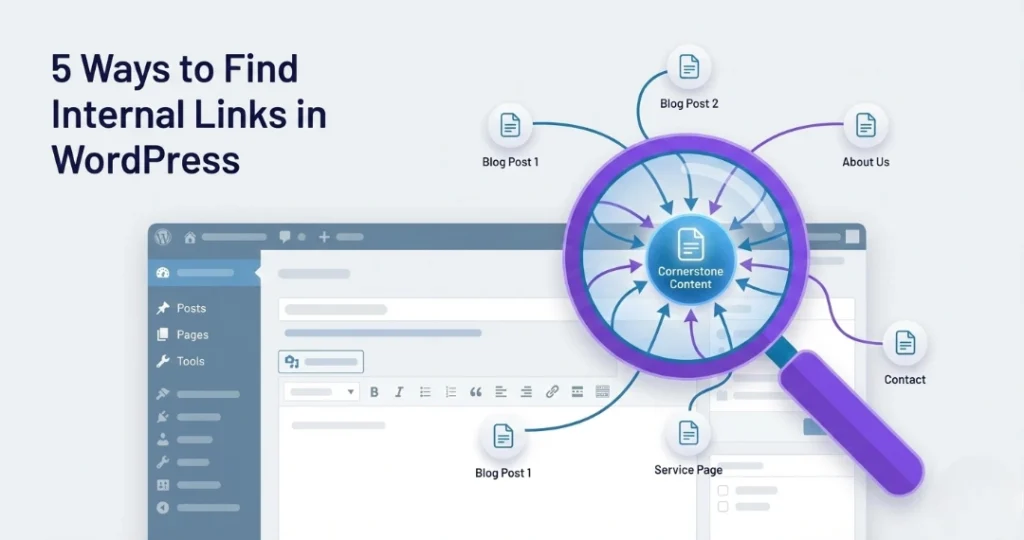
Struggling to find internal links to a page on your WordPress site? You’re not alone. Internal linking is the backbone of solid site architecture, yet tracking which pages link where becomes increasingly complex as your content grows. Whether you’re auditing orphaned content, optimizing anchor text, or improving your internal link strategy, knowing how to find internal links to a page is essential for better SEO performance and user navigation. In this guide, you’ll discover five practical methods to identify every internal link pointing to any page on your WordPress site.
Key Takeaways
- WordPress doesn’t natively track incoming internal links, requiring manual checks or specialized tools
- Google Search Console and browser methods offer free but limited solutions for finding internal links
- Automated plugins like LinkWhisper provide comprehensive link tracking and analytics for efficient management
- Regular link audits help identify orphaned pages and strengthen your site’s overall structure
Why Finding Internal Links to a Page Matters for SEO
Knowing which pages link to your content isn’t just about organization it directly impacts your search rankings. Internal links distribute page authority across your site and signal to search engines which pages matter most. When you can quickly find internal links to a page, you gain insight into your site’s link equity flow.
Pages with few or no incoming internal links often struggle to rank, no matter how great the content. These orphan pages sit isolated in your site structure, invisible to both users and search engines. By tracking internal links, you can identify weak spots and strategically strengthen your linking architecture. This visibility helps you make data-driven decisions about where to add links and which pages need more internal support.
Benefits of tracking internal links:
- Identify pages lacking link authority
- Discover broken or redirected links
- Optimize anchor text distribution
- Prevent orphaned content issues
- Improve crawl efficiency for search bots
Method 1: Use Google Search Console (Free but Limited)
Google Search Console offers a simple way to see some internal links pointing to specific pages. Navigate to the “Links” section in the left sidebar, then click “Internal links” to view a report. This shows pages on your site and sample pages that link to them.
While this method is free and requires no installation, it has significant limitations. Google only shows a sample of internal links, not a complete list. The data updates slowly and doesn’t provide real-time insights. You also can’t see anchor text details or export the information easily. For basic audits on small sites, this works. For comprehensive tracking, you’ll need more robust solutions.
Limitations to consider:
- Shows only sample links, not complete data
- Delayed updates (can take days or weeks)
- No anchor text information
- Limited filtering and sorting options
Method 2: Manual Browser Search Within WordPress
A basic method to find internal links to a page involves using your browser’s search function directly in the WordPress editor. Open your target page in the editor, copy its URL, then search for that URL across other posts using “Ctrl+F” or “Cmd+F” while viewing each post’s HTML in the code editor view.
This approach works for very small sites with limited content but becomes impractical quickly. You’d need to manually check every single post and page on your site. It’s time-consuming, prone to human error, and offers no analytics or reporting. Most site owners abandon this method after checking just a few pages. There are far more efficient ways to manage internal linking for SEO.
Method 3: WordPress Database Query (Technical Approach)
For those comfortable with database management, you can query your WordPress database directly to find internal links. Using phpMyAdmin or similar tools, you can search the wp posts table’s post content field for specific URLs. This method provides complete data but requires technical knowledge.
Run a SQL query that searches for your target URL within post content. While this gives you accurate results, it’s not user-friendly and carries risk if you’re not experienced with databases. One wrong query could damage your site. Additionally, you need to manually run these searches each time you want to check a page. For non-technical users, this method presents too many barriers and potential dangers.
Example SQL query structure:
SELECT ID, post_title, post_name
FROM wp_posts
WHERE post_content LIKE ‘%your-page-url%’
AND post_status = ‘publish’;
Method 4: External SEO Tools (Screaming Frog, Ahrefs)
Third-party SEO tools like Screaming Frog and Ahrefs can crawl your site and map all internal links. Screaming Frog’s desktop crawler identifies every wordpress link to internal page across your entire site. Set it to spider mode, enter your domain, and it creates a complete link graph showing source pages, target pages, and anchor text.
Ahrefs’ Site Audit feature provides similar functionality through its “Internal links” report. You can filter by target URL to see all pages linking to any specific page. These tools excel at comprehensive audits and provide valuable metrics like link count and authority flow. However, they come with monthly subscription costs ranging from $99 to several hundred dollars. The crawling process can also be resource-intensive for large sites.
Method 5: LinkWhisper Plugin (Automated and User-Friendly)
LinkWhisper stands out as the most efficient solution for WordPress users who need to find internal links to a page regularly. This internal linking automation tool provides instant visibility into your entire link structure without technical complexity or expensive subscriptions.
The plugin’s Link Report Dashboard shows exactly which posts and pages link to any target URL on your site. View incoming links with anchor text, link context, and total link counts at a glance. Unlike manual methods or external crawlers, LinkWhisper works directly within WordPress and updates in real-time as you add or remove links. The interface makes it simple to audit your linking strategy, identify orphan content, and optimize your site architecture.
Key features for finding internal links:
- Real-time link tracking and reporting
- Complete anchor text visibility
- Orphan page detection
- Broken link identification
- One-click access to edit linking pages
- Export capabilities for large-scale audits
LinkWhisper also suggests new internal linking opportunities as you write, helping you build a stronger site structure proactively. Rather than just finding existing links, you can continuously improve your anchor text optimization and link distribution strategy.
Best Practices for Managing Internal Links
Once you can effectively find internal links to a page, implement these practices to maintain a healthy link structure. Regularly audit your top-performing pages to ensure they receive sufficient internal links from relevant content. Aim for a natural distribution where important pages have more incoming links while avoiding over-optimization.
Monitor your anchor text to ensure variety and relevance. Using the same exact-match anchor text repeatedly can appear manipulative to search engines. Mix branded anchors, natural phrases, and keyword variations. Keep track of orphaned pages monthly and connect them to your main content clusters. Set up a routine schedule for link audits quarterly for smaller sites, monthly for larger content libraries.
Quick checklist for internal link management:
- Audit top pages monthly for link count
- Vary anchor text naturally across your site
- Fix broken internal links immediately
- Connect orphaned content to relevant hubs
- Review new content for linking opportunities
- Track link metrics in analytics reports
Conclusion
Learning how to find internal links to a page transforms your approach to WordPress SEO and site architecture. Whether you choose free methods like Google Search Console for basic checks or invest in automated solutions like LinkWhisper for comprehensive tracking, understanding your internal link structure is crucial for ranking success. Manual approaches work for tiny sites, but growing content libraries demand efficient, scalable solutions. Start by auditing your most important pages today, identify gaps in your linking strategy, and strengthen your site’s foundation for better search performance. Ready to take control of your internal linking? Explore how LinkWhisper’s features can streamline your workflow and boost your SEO results.
Frequently Asked Questions
2. Why can't I see which pages link to my WordPress content?
WordPress doesn't track incoming internal links by default. You need specialized tools or plugins to monitor your link structure. Without tracking systems, you'd have to manually check every post, making it nearly impossible for sites with substantial content.
3. What's the best tool to track wordpress link to internal page connections?
LinkWhisper offers the most efficient solution for WordPress users, providing real-time link tracking within your dashboard. It shows incoming links, anchor text, and identifies internal linking opportunities automatically while you write and edit content throughout your site.
4. How does finding internal links improve my WordPress site's SEO?
Identifying internal links helps you spot orphaned pages, balance link equity distribution, and strengthen site architecture. Better internal linking improves crawlability, boosts page authority, and helps search engines understand your content relationships, leading to improved rankings and visibility.
5. Can I use Google Analytics to find internal links to a page?
No, Google Analytics doesn't track internal link connections between your pages. It shows traffic sources and user behavior but not which specific pages link to others. You'll need SEO tools, WordPress plugins, or Google Search Console for internal link data.
6. What are the common mistakes when managing WordPress internal links?
Common errors include creating orphaned pages, using repetitive anchor text, linking to broken URLs, and ignoring on-page SEO problems like poor link distribution. Regular audits prevent these issues and maintain a healthy, well-structured site that ranks better.
7. How often should I audit internal links on my WordPress site?
Audit internal links monthly for active sites publishing regularly, or quarterly for slower-updating blogs. After major content updates or site restructures, run immediate audits. Consistent monitoring helps maintain strong WordPress SEO and prevents link decay over time.
8. Do internal links affect page load speed in WordPress?
Internal links themselves don't impact page load speed they're simple HTML elements. However, excessive plugins that track or manage links might affect performance. Choose lightweight solutions and monitor your site speed regularly to ensure optimal user experience and search rankings.
9. What's the difference between finding internal links and building new ones?
Finding internal links means auditing existing connections between your pages to understand current site structure. Building new links involves strategically adding connections to strengthen architecture. Both processes are essential auditing reveals gaps, while building fills them for better SEO performance.
Check if your site has the same issues.
Run a free audit right now. See your orphaned pages, broken links, and link health score in 60 seconds.
Check My Site