Contents
- 1 404 Checker: Stop Losing Rankings to Broken Pages
- 2 Table of Contents
- 3 What Are 404 Errors and Why They Damage WordPress SEO
- 4 How to Find 404 Errors on Your WordPress Site
- 5 Fixing 404 Errors: Redirects, Updates, and Removals
- 6 Using an Internal Link Checker to Catch Dead Links
- 7 How Link Whisper Prevents 404 Errors From Returning
- 8 Best Practices for Ongoing 404 Prevention on WordPress
- 9 Conclusion: Run Your 404 Checker and Protect Your Rankings
- 10 Keep learning about internal linking
404 Checker: Stop Losing Rankings to Broken Pages
Running a 404 checker on your WordPress site is not optional when every broken page silently bleeds your domain authority. When Google’s crawler hits a 404 error, it logs the problem, devalues the linking page, and reduces crawl efficiency across your entire domain. For WordPress site owners managing dozens or hundreds of pages, a thorough 404 errors checker scan is essential. This guide covers exactly how to find every 404 on your WordPress site, fix them with the right strategy, and use Link Whisper to prevent them from coming back.
Key Takeaways
- 404 errors drain link equity
- Use a 404 checker for broken links
- Fix errors with redirects or link updates
- Link Whisper automates broken link monitoring
- Regular audits protect rankings and UX
Table of Contents
- What Are 404 Errors and Why They Damage WordPress SEO
- How to Find 404 Errors on Your WordPress Site
- Fixing 404 Errors: Redirects, Updates, and Removals
- Using an Internal Link Checker to Catch Dead Links
- How Link Whisper Prevents 404 Errors From Returning
- Best Practices for Ongoing 404 Prevention
- Conclusion
- FAQ
What Are 404 Errors and Why They Damage WordPress SEO
A 404 error is the HTTP response code a server returns when a requested page does not exist. It means the page was either deleted, moved without a redirect, or the URL was typed incorrectly. On a growing WordPress site, 404 errors accumulate over time and quietly destroy the site architecture you worked hard to build.
The SEO Impact of 404 Errors
Link Equity Loss:
When an internal or external link points to a 404 page, the link equity that would normally flow to that destination is lost. According to Google’s official crawling documentation, server errors and not-found responses interrupt the normal indexing pipeline. Pages that once held strong rankings can lose authority when the links pointing to them return 404 status codes instead of delivering PageRank.
Crawl Budget Waste:
Google allocates a finite crawl budget to every domain. When Googlebot encounters multiple 404 pages during a crawl cycle, it spends that budget on dead ends. Larger sites with thousands of pages feel this problem most acutely. Every wasted crawl request is one fewer page indexed, which means newer content and recently updated posts may not appear in search results as quickly.
User Experience Damage:
Visitors who land on a 404 page bounce immediately. A high bounce rate on broken pages sends negative engagement signals to search engines. It also undermines trust. A reader who encounters a broken link while navigating your site is far less likely to convert, subscribe, or return. For affiliate sites and eCommerce stores, this translates directly into lost revenue.
Types of 404 Errors on WordPress
Internal 404 Errors:
These happen when pages within your own site link to a URL that no longer exists. They are the most damaging type because they indicate broken site architecture. An internal 404 is almost always caused by a deleted post, a changed permalink structure, or a manual URL edit that was not accompanied by a redirect.
External 404 Errors:
These occur when another website links to a page on your domain that no longer exists. You cannot control what other sites link to, but you can manage the destination. A 301 redirect to a relevant live page preserves the inbound link equity and prevents visitors from hitting a dead end.
Soft 404 Errors:
A soft 404 is a page that returns a 200 OK status code but contains little or no content. Google treats these as 404s in practice. Examples include empty category archives, search result pages with no matches, and placeholder pages left from site migrations. Google’s Search Console Help documentation on soft 404s explains how these pages confuse crawlers and dilute site quality signals.
How 404 Errors Compound Over Time
Accumulation Rate:
On active blogs and content sites, 404 errors multiply faster than most owners realize. Every time you delete a post, change a category slug, restructure your URL format, or migrate from one domain to another, new 404 errors can appear. Without regular 404 errors checker scans, you may not discover these broken links for weeks or months.
Authority Dilution:
Each broken internal link represents a missed opportunity to pass authority from a strong page to a weaker one. Sites with well-maintained internal link structures consistently outperform those with broken networks because link equity flows cleanly from high-authority pages to content that needs a rankings boost. Broken links interrupt that flow entirely.
Indexation Reduction:
Research from Google’s crawling and indexing architecture confirms that pages with strong internal linking are discovered and indexed faster than orphaned or poorly connected pages. When broken links fragment your internal network, pages that depend on those links for discoverability may drop out of the index or fail to get indexed at all.
How to Find 404 Errors on Your WordPress Site
Finding every 404 error on a WordPress site requires a systematic approach. Relying on random discovery or user complaints is not a strategy. You need dedicated tools and a repeatable process to surface every broken link before it costs you rankings.
Using Google Search Console as a Free 404 Checker
Coverage Report:
Google Search Console provides a free and authoritative source of 404 data. Navigate to the ‘Pages’ report under ‘Indexing’ in the left sidebar. Filter for ‘Not found (404)’ to see every URL that Googlebot has attempted to crawl and received a 404 response from your server. This list is invaluable because it comes directly from Google’s own crawl data rather than a simulated scan.
URL Inspection Tool:
For individual pages you suspect might be returning errors, the URL Inspection Tool in Search Console lets you check the live status of any URL instantly. Enter the full URL and Google will report whether it is indexed, blocked by robots.txt, returning a redirect, or serving a 404. This is useful for verifying fixes after you have implemented redirects.
Crawl Stats Report:
The Crawl Stats report in Search Console shows trends in how Googlebot interacts with your site over time. A spike in ‘Response code not found’ events correlates with a wave of new 404 errors, often caused by a bulk deletion, a plugin update that changed URL structures, or a theme migration. Monitoring this report weekly gives you early warning before 404 errors accumulate.
WordPress 404 Checker Plugins and Built-In Tools
WordPress Error Logging:
WordPress itself does not surface 404 errors in the admin dashboard by default, but you can enable error logging through your server configuration or by adding a simple plugin that captures 404 traffic. These logs record every request that returns a 404 status, along with the referrer URL that sent the visitor to the broken page. Referrer data is especially helpful because it tells you which pages need their links updated.
Built-In WordPress Redirect Options:
WordPress does not natively redirect deleted posts, which is why 404 errors appear so frequently after content cleanup sessions. The platform allows you to set custom 404 pages through your theme, but a custom 404 page does not fix the underlying SEO problem. The broken link still wastes crawl budget and loses link equity. You need an actual redirect or a link update to fully resolve the issue.
Link Whisper’s Broken Link Report:
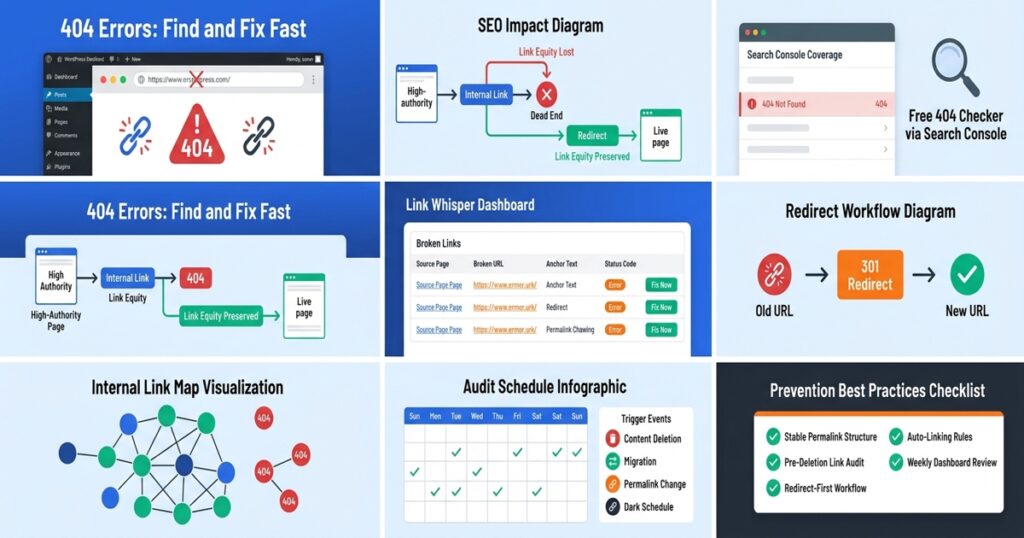
Link Whisper includes a built-in broken link detection feature that scans your entire WordPress site for internal links returning 404 status codes. Unlike manual methods that require you to visit each page individually, Link Whisper’s internal link checker runs automatically and surfaces every broken link in a single report. You can view broken links organized by the page they appear on, making it simple to prioritize fixes on your highest-traffic pages first. Use the free internal link checker tool to get started immediately.
Manual and Automated Dead Link Checker Methods
Manual Page-by-Page Review:
For small sites with fewer than 50 pages, a manual review can catch obvious broken links. Open each page, click every internal link, and verify that it loads correctly. While this approach requires no tools, it is time-consuming and error-prone. It also misses external links pointing to deleted pages and soft 404 errors that return a 200 status code visually.
Automated Site Crawl Scans:
Automated crawl tools scan your site’s URLs and test each link’s HTTP response code. A good dead link checker will test internal links, external links, image URLs, and resource files simultaneously. It categorizes results by error type and provides the source page and anchor text for each broken link, giving you a complete action plan without manual investigation.
Server Log Analysis:
Server logs are the most comprehensive source of 404 data available. Unlike crawl tools that simulate a visitor’s path through your site, server logs record every actual request your server receives. Parsing logs with tools available in your hosting control panel reveals 404 patterns that crawl simulations miss, including API calls, dynamic URL patterns, and direct-access attempts from bookmarks and external links.
Fixing 404 Errors: Redirects, Updates, and Removals
Finding broken links is only half the work. Fixing them correctly requires choosing the right method based on the type of error, the authority of the affected page, and the availability of a relevant destination URL. Applying the wrong fix is almost as bad as leaving the 404 in place.
Implementing 301 Redirects for Deleted and Moved Pages
What a 301 Redirect Does:
A 301 redirect is a permanent server-level instruction that tells browsers and search engines that a page has moved to a new URL. When Googlebot follows a 301 redirect, it transfers the vast majority of the original page’s link equity to the destination URL. This makes 301 redirects the correct fix for any 404 that was previously a high-traffic or high-authority page.
WordPress Redirect Implementation:
You can implement 301 redirects in WordPress through your server’s .htaccess file or through a redirect management plugin. The .htaccess method is faster and does not add database queries to each page load, making it the preferred approach for performance-conscious site owners. The syntax follows a simple pattern: ‘Redirect 301 /old-url/ /new-url/’. For more complex redirect patterns, regular expression rules let you redirect entire URL categories with a single rule. Learn more about how to properly manage and remove redirects when they are no longer needed.
Redirect Chain Avoidance:
A redirect chain occurs when URL A redirects to URL B, which then redirects to URL C. Each additional hop in the chain reduces the amount of link equity passed and slows page load time for visitors. When implementing redirects, always point directly to the final destination URL. Audit existing redirects regularly to collapse any chains that have formed over time due to multiple rounds of site restructuring.
Updating Internal Links Instead of Redirecting
When to Update vs Redirect:
If a page’s URL has changed and the old URL only existed internally, updating the source link directly is cleaner than creating a redirect. A direct link update eliminates the server hop entirely and passes full link equity without any intermediary step. Reserve 301 redirects for URLs that exist in external links, sitemaps, bookmarks, or Google’s index. For purely internal links discovered by your bad links checker, a direct update is almost always the better choice.
Bulk Link Editing with Link Whisper:
Link Whisper’s bulk link editing feature lets you update multiple broken internal links simultaneously from a central dashboard. Instead of opening each post, locating the broken link, and editing it manually, you can select all instances of a broken URL across your entire site and replace it with the correct destination in a single operation. For large sites with hundreds of posts containing the same broken link, this feature alone can save hours of manual work. You can explore the full internal link checker complete guide for a deeper breakdown of the repair process.
Anchor Text Preservation:
When updating a broken internal link, verify that the anchor text still accurately describes the destination page. If the original anchor text was written for a page that no longer exists and the new destination covers a different topic, update the anchor text as well. Mismatched anchor text confuses both readers and search engines and can dilute the topical relevance signal that the link was intended to send.
Removing Irrelevant Dead Links
When Removal Is the Right Choice:
Not every broken link deserves a redirect or an update. If the linked page covered a topic that is no longer relevant to your site’s focus, removing the link entirely is the cleanest option. Removing a broken link from a post is simple in the WordPress editor and takes under a minute. The source page retains all its other links and internal link equity continues to flow normally through its remaining connections.
Orphaned Content Risk:
When you remove an internal link, check whether the destination page still has other inbound links from within your site. If removing the broken link would leave the destination page as an orphan with zero internal links, consider whether that page should be deleted, merged into another post, or given new internal links before you proceed. Link Whisper’s orphaned content detection feature identifies pages with no internal links, making this check fast and easy.
External Dead Link Management:
For external links on your site that point to third-party pages returning 404 errors, your options are to update the link to a working equivalent, link to an archived version of the page through the Wayback Machine, or remove the link entirely. External dead links hurt your site’s credibility and suggest to readers and search engines that your content is not being maintained. A regular dead link checker scan should include external links as well as internal ones.
Using an Internal Link Checker to Catch Dead Links
An internal link checker is a tool that systematically tests every link within your site and reports which ones return errors. For WordPress site owners, having this capability built into the platform you already use is far more efficient than running separate scans from external tools.
What an Internal Link Checker Actually Tests
HTTP Status Code Verification:
A proper internal link checker tests the HTTP status code returned by every URL in your internal link network. It distinguishes between 200 OK, 301 Moved Permanently, 302 Found, 404 Not Found, 410 Gone, 500 Server Error, and other response codes. This granularity matters because a 301 redirect is not the same as a properly resolved link and a 410 response requires different treatment than a 404.
Anchor Text Audit:
Beyond checking whether links resolve correctly, a wordpress internal link checker tool should also surface the anchor text used for each link. This allows you to identify over-optimized anchors, generic phrase anchors like ‘click here’, and anchor text that does not match the destination page’s topic. Anchor text health is a ranking factor that many site owners neglect during their link audits.
Link Source Identification:
Knowing that a broken link exists is only useful if you know which page it lives on. A good internal link checker maps each broken link to its exact source post or page, along with the paragraph and surrounding context where possible. This allows you to open the correct post, locate the broken link immediately, and apply the fix without hunting through your entire content library.
Visualizing Your Link Structure with a Link Map
Why Site Architecture Visualization Matters:
Understanding how your internal links connect your pages is as important as knowing which ones are broken. A visual link map shows you the topology of your site’s internal linking network at a glance. You can identify hub pages with many inbound links, isolated pages with few connections, and broken link clusters where multiple pages point to the same deleted URL.
Link Whisper’s Internal Link Map:
Link Whisper provides an interactive internal link map tool that visualizes your entire site’s internal link structure. This map highlights orphaned pages, over-linked pages, and pages that serve as critical hubs in your site architecture. When you identify a 404 that sits at the center of multiple linking paths, the map helps you understand the full scope of the damage and prioritize the repair accordingly.
Cluster Analysis:
Topic clusters are a fundamental pillar of modern SEO architecture. A cluster is a group of related pages connected by internal links, with a pillar page at the center. When a 404 appears within a cluster, it fragments the topical relationship that internal links were meant to create. Visualizing clusters through a link map lets you see exactly which content relationships are broken and which need reinforcing after a round of 404 fixes.
Setting Up a Regular 404 Audit Schedule
Audit Frequency Recommendations:
For sites publishing new content weekly, a monthly internal link audit is the minimum recommended frequency. For high-volume sites publishing daily, a weekly scan is more appropriate. The goal is to catch 404 errors before they accumulate enough to affect crawl budget and before Googlebot logs them in Search Console as recurring issues. Catching errors within days of their creation minimizes ranking damage.
Trigger-Based Audits:
Certain events should always trigger an immediate 404 errors checker scan regardless of your regular schedule. These include content deletion sessions, permalink structure changes, domain migrations, theme updates that affect URL structure, plugin updates that modify how WordPress generates URLs, and any bulk import or export of content. These events are the primary causes of sudden 404 spikes and require immediate investigation.
Documenting Link Changes:
Maintaining a simple spreadsheet log of URL changes, deletions, and redirects prevents duplicate work and confusion during future audits. Record the original URL, the date of change, the action taken, and the destination URL if a redirect was implemented. This log becomes invaluable during domain migrations or major site restructures when dozens of URLs change simultaneously. It also serves as documentation if you ever need to troubleshoot redirect loops or chains months after the fact.
How Link Whisper Prevents 404 Errors From Returning
Link Whisper is designed to do more than help you build internal links. Its monitoring and reporting capabilities make it a complete solution for ongoing link health management on WordPress sites of any size.
Link Whisper’s Broken Link Detection and Reporting
Automated Scanning:
Link Whisper automatically scans your WordPress site’s internal links and identifies any that return a 404 or other error status. This scan runs in the background without requiring you to initiate a manual check every time. When a broken link is detected, it appears in the Link Whisper dashboard under the broken links report, organized by post so you can triage and fix issues efficiently.
Error Report Dashboard:
The broken links error report in Link Whisper displays the source post, the broken URL, the anchor text used, and the HTTP status code returned. This consolidated view eliminates the need to cross-reference multiple tools. You can see at a glance which pages have the most broken links and which broken URLs appear across multiple posts, indicating a high-priority fix that will resolve errors across your entire site simultaneously.
Fix-in-Place Editing:
Link Whisper allows you to edit broken links directly from the error report without opening each individual post in the WordPress editor. This fix-in-place capability significantly reduces the time required to resolve broken link issues. For a site with 20 broken links spread across 15 posts, you can complete all repairs in minutes rather than spending time navigating to each post individually.
AI-Powered Link Suggestions to Replace Broken Links
Context-Aware Recommendations:
When Link Whisper detects a broken internal link, its AI-powered suggestion engine can recommend replacement links based on the context of the surrounding text. The system analyzes the content of the source page and identifies other pages on your site that are topically relevant to the broken link’s original purpose. This means you can replace a dead link with a contextually appropriate live link in a single step rather than manually searching your site for a suitable replacement.
Target Keyword Matching:
Link Whisper’s suggestion engine uses target keywords assigned to each post to improve the relevance of its recommendations. When a post about affiliate marketing has a broken internal link, the system knows to suggest replacement links to other affiliate-related content rather than to unrelated posts. This keyword-aware matching produces higher-quality link suggestions and ensures your internal link network remains topically coherent after repairs.
Anchor Text Optimization:
Along with link suggestions, Link Whisper provides guidance on anchor text quality. It flags posts using identical anchor text for multiple links, posts with generic anchors like ‘here’ or ‘this post’, and posts where anchor text does not match the target page’s primary topic. Maintaining clean anchor text across your internal link network supports both keyword relevance signals and user navigation clarity.
Automatic Linking Rules for Long-Term Link Health
Rule-Based Auto-Linking:
Link Whisper’s automatic internal linking rules let you define keyword and destination pairs that apply across your entire site. Every time a defined keyword appears in any post or page, Link Whisper automatically inserts the corresponding internal link. This ensures that new content you publish always links back to your most important pillar pages without requiring manual review of every new post. It also prevents the gradual link entropy that causes 404 rates to rise as sites grow.
Exclusion Controls:
Automatic linking rules include exclusion controls that let you prevent links from appearing in specific posts, post types, or categories. For example, you might want to exclude your homepage or landing pages from automatic link insertion to maintain a clean conversion-focused layout. You can also exclude certain keywords from triggering auto-links if they appear in contexts where a link would be disruptive or irrelevant. Learn how to configure these settings in the auto-link exclusion guide.
New Post Protection:
Every new post you publish starts with zero internal links unless you manually add them or your site has automation in place. Link Whisper’s auto-linking rules mean that the moment you hit publish, relevant keyword matches across your existing content can automatically link to your new post and your new post can automatically link outward to your pillar pages. This eliminates the new-post orphan problem that plagues sites without a systematic internal linking strategy.
Best Practices for Ongoing 404 Prevention on WordPress
Fixing 404 errors reactively is necessary, but preventing them proactively is far more efficient. The following best practices reduce the frequency of new 404 errors and make your repair workflow faster when errors do appear.
Permalink Structure and URL Management
Stable URL Structure Selection:
The most common cause of mass 404 events on WordPress is a permalink structure change. When you switch from a date-based URL format to a post-name format, every existing URL on your site changes simultaneously. Choose your permalink structure early and commit to it. If you must change it, implement bulk redirects that map every old URL pattern to its new equivalent before making the change live.
Category and Tag Slug Consistency:
Category and tag archives generate URLs that internal links reference. Changing a category slug after posts have been published and linked under the old URL creates a wave of 404 errors across every post assigned to that category. Before renaming categories or tags, use Link Whisper’s link report to identify every internal link pointing to the affected archive URL so you can redirect or update them immediately after the rename.
Custom Post Type URL Planning:
Sites using custom post types for portfolios, products, or resources must plan URL structures for those post types before publishing. Changing a custom post type’s URL slug after content has been published and indexed is one of the most disruptive 404-generating events possible. Plan URL structures for all custom post types at site launch and document them so future developers or editors do not accidentally alter them during plugin or theme updates.
Content Deletion and Archiving Protocol
Pre-Deletion Link Audit:
Before deleting any post or page, run a quick check to identify how many internal links point to it. Link Whisper’s link report shows you every page on your site that links to a specific URL. If a page has ten internal links pointing to it, deleting it without redirects or link updates will instantly create ten new broken links. Always audit inbound internal links before deletion and handle them proactively.
Redirect-First Deletion Workflow:
The safest content deletion workflow is to implement the redirect before removing the content. Set up the 301 redirect from the post URL to its new destination, verify that the redirect works correctly, and then delete the post. This order of operations ensures that Googlebot never encounters a live 404 for the deleted URL because the redirect is already in place when the post is removed.
Content Consolidation vs Deletion:
Before deleting underperforming content, consider whether it can be consolidated into a stronger existing post. Content consolidation involves merging the text of a weak post into a related strong post and then redirecting the deleted post’s URL to the updated consolidated page. This approach preserves any external link equity pointing to the deleted URL, improves the authority of the consolidated page, and eliminates the risk of creating new 404 errors. You can learn more about maintaining healthy links in the internal link audit guide.
Domain Migration and HTTPS Transition Best Practices
Pre-Migration URL Mapping:
Domain migrations are the single highest-risk event for creating large volumes of 404 errors. Before migrating, create a complete URL map of every page on your current domain. This map becomes the basis for your redirect rules on the new domain. Every old URL must have a corresponding redirect to a new URL, or you will lose the link equity built up by years of internal and external linking.
HTTPS Migration Considerations:
Moving from HTTP to HTTPS is a straightforward but often mishandled migration. If your server does not automatically redirect all HTTP requests to HTTPS, every HTTP link in your internal link network effectively becomes a soft redirect that could return a 404 if the HTTP version of a page is not properly handled. Verify that your server configuration redirects all HTTP traffic to HTTPS at the domain level and test a sample of internal links after the transition to confirm they resolve to HTTPS URLs without errors.
Post-Migration Verification with Link Whisper:
After any domain migration or HTTPS transition, run a full Link Whisper broken link scan immediately. Even a perfectly planned migration can produce unexpected 404 errors due to URL encoding differences, trailing slash inconsistencies, or plugin-generated URLs that follow patterns the redirect rules did not anticipate. Catching these edge cases within hours of migration completion minimizes their impact on crawl data and search rankings. Review how improving crawl depth increases indexation after you have resolved migration-related 404 errors.
Ongoing Link Health Monitoring Strategies
Google Search Console Integration:
Connect your WordPress site to Google Search Console and check the Coverage report weekly. Configure Search Console email alerts so you receive notification when Google detects a spike in 404 errors. These alerts give you early warning of problems that might otherwise go undetected for weeks. The combination of Search Console’s external crawl data and Link Whisper’s internal scan data gives you the most complete picture of your site’s link health.
Link Whisper Dashboard Monitoring:
Make the Link Whisper dashboard part of your weekly WordPress maintenance routine. Review the broken links report alongside your other site health metrics. A five-minute weekly review of the broken links report is enough to catch and fix new errors before they accumulate. For sites with active editors and contributors, this routine check also catches errors introduced by guest posts, imported content, or manual editing mistakes.
404 Error Trend Analysis:
Track the total number of 404 errors in your Link Whisper report over time. A rising trend indicates that your content management processes are generating broken links faster than you are fixing them. A declining trend confirms that your prevention strategies are working. Use this trend data to evaluate whether your permalink structure, content deletion protocol, and auto-linking rules need adjustment. Maintaining a complete view of your WordPress site architecture and link structure makes it easier to spot systemic problems before they escalate.
Conclusion: Run Your 404 Checker and Protect Your Rankings
Every unresolved 404 error is a slow drain on the authority, crawl efficiency, and user experience of your WordPress site. The solution starts with a thorough 404 checker scan to surface every broken link, followed by the right fix for each error type. Whether you implement 301 redirects, update internal links directly, or remove irrelevant broken links, the key is acting quickly and systematically. Link Whisper makes this entire process faster and more reliable by combining automated broken link detection, bulk editing tools, AI-powered replacement suggestions, and ongoing monitoring in a single WordPress plugin. Start your free scan today with the free internal link checker and take control of your site’s link health before another 404 costs you a ranking.
Link Whisper tips
Keep learning about internal linking
Get Link Whisper tips and offers in your inbox.
Check if your site has the same issues.
Run a free audit right now. See your orphaned pages, broken links, and link health score in 60 seconds.
Check My Site