Contents
- 1 Stop Letting 404 Errors Drain Your Rankings
- 2 What Is a 404 Error and Why Does It Matter for SEO
- 3 The Real SEO Cost of 404 Errors on WordPress Sites
- 4 How to Run a Full 404 Check on Your WordPress Site
- 5 How to Fix 404 Errors: Redirects, Link Updates, and Restoration
- 6 How to Prevent 404 Errors From Coming Back
- 7 Link Whisper: Your Permanent 404 Monitoring Solution
- 8 Take Control of Your WordPress 404 Errors Today
- 9 What is a 404 checker and why do I need one for WordPress? A 404 checker scans your site and identifies URLs returning a 404 'not found' status code. WordPress sites need one because slugs change, posts get deleted, and links break constantly. Without regular scanning, broken links accumulate silently and drain your link equity and crawl budget over time. How often should I run a dead link checker on my WordPress site? Run a full dead link checker scan at least once per month. For high-volume publishing sites, weekly scans are recommended. After any major content restructuring, site migration, or bulk post deletion, run an immediate scan regardless of your regular schedule to catch new errors right away. What is the difference between a 301 redirect and a 302 redirect for fixing 404 errors? A 301 redirect signals a permanent move and transfers the majority of link equity to the destination URL. A 302 redirect signals a temporary move and transfers little to no link equity. Always use 301 redirects when fixing 404 errors caused by permanently moved or deleted content on your WordPress site. Can 404 errors cause a WordPress site to lose Google rankings? Yes. 404 errors on pages with backlinks cause direct link equity loss. High volumes of 404s waste crawl budget, delay indexing of new content, and signal poor site maintenance to Google. Pages that previously ranked can drop significantly after their URL breaks and is left unredirected for an extended period. How does Link Whisper detect broken internal links automatically? Link Whisper's plugin scans your internal links continuously as you publish and update content. It checks each destination URL's HTTP status code and flags any returning 404 or other error responses in the dashboard. This automated approach catches broken links far faster than any manual audit process, helping you maintain topical authority through consistent internal linking across your entire site. What should I do when my bad links checker finds hundreds of broken links at once? Prioritize by page authority and traffic volume first. Fix broken links on your most visited and most linked-to pages before addressing low-traffic pages. Use bulk link update tools to update multiple links simultaneously. Set up 301 redirects for all broken destination URLs to prevent further link equity loss across your site. Are soft 404 errors as damaging as hard 404 errors for SEO? Soft 404s, pages returning 200 OK but displaying error content, are nearly as damaging as hard 404s. Google detects them and reduces crawl priority for affected pages. They waste crawl budget and confuse Google's understanding of your site structure. Fix them by either adding real content or returning a proper 404 status code through your template. How do I find 404 errors that Google Search Console has not reported yet? Use a dedicated dead link checker tool that crawls your site independently of Google's crawl schedule. Server log analysis reveals 404s from all traffic sources including real visitors and external bots. Combining Search Console data with an independent crawler and Link Whisper's link building tools gives you the most complete broken link picture available. Does fixing 404 errors with redirects immediately restore my search rankings? Ranking recovery after fixing 404 errors depends on how long the errors existed and how quickly Google recrawls the affected pages. High-authority pages are recrawled faster. Recovery can take days to weeks depending on crawl frequency. Fixing errors promptly minimizes authority loss and gives rankings the best chance to recover quickly. What is the best internal link checker tool for WordPress sites? The best internal link checker for WordPress integrates directly with your dashboard for real-time monitoring. Link Whisper provides built-in broken link detection, bulk fix capabilities, and AI-powered link suggestions, as shown in the comparison of Link Whisper vs Yoast, where dedicated link management clearly outperforms general SEO plugins for broken link detection.
- 10 Keep learning about internal linking
Stop Letting 404 Errors Drain Your Rankings
A single broken page on your WordPress site can silently destroy months of SEO work. When your 404 checker reveals errors on high-authority pages, you are not just looking at a user experience problem. You are watching link equity evaporate and signaling to Google’s crawler that your site is poorly maintained. This guide walks you through what 404 errors really cost you, how to run a thorough 404 errors checker scan on any WordPress site, how to fix every type of error you find, and how to prevent new ones from appearing with automated monitoring through Link Whisper.
Key Takeaways
- 404 errors drain link equity and hurt crawl budget
- Dead links on authority pages cause the fastest ranking drops
- Redirects and link updates are the two core fixes
- Link Whisper monitors and prevents new 404s automatically
- Combining Google Search Console data with a dedicated crawler gives you complete coverage
What Is a 404 Error and Why Does It Matter for SEO
A 404 error is an HTTP status code returned when a server cannot find the page a visitor or crawler requested. For WordPress sites, 404s happen constantly as content is reorganized, slugs change, or posts get deleted without proper redirect management. Understanding the difference between error types helps you prioritize your fixes correctly.
Hard 404s vs. Soft 404s
A hard 404 returns the actual 404 HTTP status code. Google’s crawler reads this code, deindexes the page over time, and stops passing PageRank through any links pointing to it. A soft 404 returns a 200 OK status code but displays content that signals no real value to Google, such as a ‘Page Not Found’ message on a custom error template. Google detects soft 404s and treats them similarly to hard 404s in terms of crawl prioritization and link equity transfer.
WordPress is especially vulnerable because it makes it easy to change slugs, delete posts, and restructure categories. Every one of those actions creates a potential 404. Sites with hundreds of posts accumulate broken links faster than any manual process can track, which is exactly why a dedicated dead link checker is essential for serious WordPress publishers.
How Google’s Crawler Responds to 404 Errors
According to Google’s official crawl budget documentation, crawlers allocate a finite number of requests per site per day. When a significant portion of those requests return 404 responses, Google redistributes crawl capacity away from your site. PageRank flows through links, and when a page with backlinks returns a 404, those external links stop passing authority to the rest of your site. A high ratio of 404s in Google Search Console’s Coverage report signals site health problems and reduces crawl prioritization for the entire domain.
The Real SEO Cost of 404 Errors on WordPress Sites
Each 404 error has a distinct and measurable cost that goes beyond a single broken page. Understanding these mechanisms helps you prioritize fixes and make the case for investing in an internal link checker solution.
Link Equity Loss and Crawl Budget Waste
Imagine a page on your site that has earned 15 referring domains over three years. If that page returns a 404, all 15 of those external backlinks stop contributing to your domain’s authority. The original PageRank research from Stanford established that authority flows through links in a network. When a node in that network disappears without a redirect, the flow stops permanently.
Every time Googlebot visits a URL that returns 404, it uses a crawl request that could have been spent on a healthy, indexable page. For sites with thousands of posts, even a small percentage of error URLs translates into significant crawl budget waste. Newer content and recently updated pages may wait longer to be discovered as a result.
Internal Link Architecture Degradation
When a page that served as a linking hub returns 404, all the pages it linked to lose an internal link pointing at them. This cascade effect can effectively orphan dozens of connected posts. Modern SEO content strategy relies on topic clusters to establish topical authority. A 404 on a pillar page breaks the cluster entirely, fragmenting the semantic relationships Google used to understand your content’s topical depth.
How to Run a Full 404 Check on Your WordPress Site
A comprehensive 404 checker workflow covers server-side errors, internal link errors, and externally reported errors. Here is the complete process for finding every broken link on your WordPress site.
Using Google Search Console
Log into Google Search Console and navigate to ‘Indexing,’ then select ‘Pages.’ Filter results to show ‘Not found (404)’ errors. This report shows every URL Google has attempted to crawl that returned a 404 status code. Export this list as a CSV for further analysis. Pages that were previously indexed and now return 404 are the highest priority because they had established authority before breaking.
Note that Search Console only reports URLs Google has already attempted to crawl. It may miss 404s on pages Google has not yet visited. This is why combining Search Console data with a dedicated bad links checker tool gives you complete coverage of your entire link profile.
Using a Dedicated Dead Link Checker Tool
A dedicated dead link checker crawls your site independently of Google’s schedule and returns a comprehensive report of broken internal links, their source pages, and the broken destination URLs. This lets you prioritize fixes starting with your highest-traffic and highest-authority pages. Running a dedicated crawler alongside Search Console ensures you catch 404s before Google even discovers them, protecting your rankings proactively rather than reactively.
Beyond finding 404s, understanding your complete link architecture helps you spot weak points before they become problems. Mapping how your pages connect to each other reveals hub pages, orphaned content, and areas where your link structure could be strengthened to prevent future authority loss.
Manual navigation elements like menus and sidebar widgets often contain hardcoded links that are not automatically updated when pages change. A thorough bad links checker approach includes a manual review of all navigation menus, footer links, and widget areas for outdated URLs. Server access logs record every request made to your server, including requests from real visitors, bots, and crawlers. Analyzing these logs reveals 404 patterns that no surface-level crawl can detect, including direct URL access attempts and bookmark visits to deleted pages.
How to Fix 404 Errors: Redirects, Link Updates, and Restoration
Once your 404 errors checker scan reveals a complete list of broken URLs, you need a systematic approach to fixing them. The right fix depends on why the page broke and whether the content still exists.
Setting Up 301 Redirects
A 301 redirect tells browsers and search engines that a page has permanently moved to a new URL. Use a 301 when content exists at a new URL, when you consolidated similar pages, or when you changed a permalink structure. The 301 redirect transfers the majority of link equity from the old URL to the new destination. Always redirect directly to the final destination URL to avoid redirect chains, which reduce the amount of link equity transferred with each additional hop.
Updating Internal Links Directly
While a 301 redirect handles external links and bookmark traffic, updating internal links directly to point to the correct URL is always the better approach for internal architecture. Internal links to a redirect destination pass less equity than direct links. Link Whisper’s dashboard provides a link management interface where you can update broken internal links in bulk without opening each individual post. This turns a project that could take days of manual editing into a task measured in minutes. Learn more about how internal links impact SEO rankings and why keeping them healthy is a core factor in maintaining authority.
Restoring or Replacing Deleted Content
If a page was deleted accidentally and the content still has topical value and backlinks, restoring it at the same URL is the best fix. Restoration preserves all existing backlinks and maintains internal link destinations. If the original content is outdated or no longer relevant, creating a fresh replacement page at the same URL recaptures link equity while improving user experience. If the topic is not worth covering again, redirect the old URL to the most thematically relevant page remaining on your site.
How to Prevent 404 Errors From Coming Back
Fixing existing 404s is only half the battle. Without prevention systems in place, new broken links will appear every time you publish, update, or restructure content. A proactive approach to internal link checker tools and workflow automation separates sites that maintain clean link health from those that repeatedly accumulate errors.
Editorial Workflows That Prevent 404 Creation
Establish a team-wide rule that no post or page is deleted without first setting up a redirect to the most relevant live URL. Changing a post slug is one of the most common unintentional 404 triggers because WordPress does not automatically redirect old slugs to new ones. Any time a slug must change, the editor must create a 301 redirect before publishing the update. Site migrations are the single largest source of mass 404 creation. Before migrating, create a complete URL map of the existing site and a corresponding map of destination URLs, and test the redirect map on a staging environment before cutover.
Using Link Whisper for Ongoing 404 Prevention
The Link Whisper plugin includes broken link reporting built directly into the WordPress dashboard. As you publish new content and edit existing posts, Link Whisper continuously monitors your internal links and flags any that lead to 404 destinations. You receive actionable reports without needing to run a manual scan. Learn more about how internal linking automation for WordPress keeps your link architecture healthy and current at all times.
Link Whisper also detects orphaned content, which identifies pages with no internal links pointing to them. While not 404s themselves, orphaned pages are at high risk of being accidentally deleted without redirects during site restructuring. Keeping your site free of orphaned content reduces the likelihood that these pages will eventually create 404 errors.
Link Whisper: Your Permanent 404 Monitoring Solution
The Link Whisper plugin goes far beyond basic link suggestions. Its integrated approach to link health monitoring, broken link detection, and internal link checker tools makes it the most complete 404 prevention and monitoring solution available for WordPress.
Broken Link Reporting and Bulk Fixes
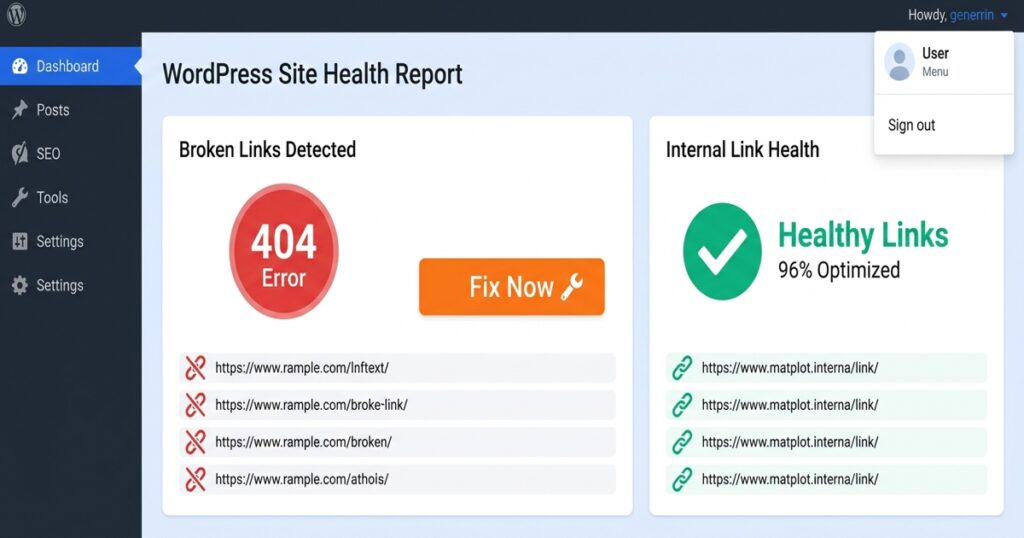
Link Whisper’s dashboard provides a centralized view of your site’s entire internal link health. The broken links section shows every internal link that leads to a 404 or other error status, organized by source page. From the dashboard, you can update multiple broken internal links simultaneously without opening each post individually. The broken link report allows you to sort findings by page authority, traffic volume, and number of broken links per page, ensuring you address the most damaging broken links first.
AI-Powered Link Suggestions That Prevent Gaps
Link Whisper’s AI engine analyzes the content of every post on your site and suggests contextually relevant internal links based on semantic similarity. This means new posts are immediately connected to the most relevant existing content, reducing the risk that any page becomes isolated or that future reorganizations create link gaps. For sites that publish high volumes of content, automatic internal linking rules let you define triggers that automatically insert links to specified pages whenever particular keywords appear in new posts.
Link Whisper for Agencies and Multi-Site Management
For agencies managing multiple WordPress client sites, running a 404 checker scan manually across every site is impractical. The agency features of Link Whisper are specifically designed for this use case, with client reporting and multi-site license options that allow broken link reports and link health dashboards to be managed across multiple properties from a single interface.
Take Control of Your WordPress 404 Errors Today
Every 404 error on your WordPress site is a silent tax on your SEO performance. It drains link equity, wastes crawl budget, and signals poor site maintenance to Google’s crawler. Running a thorough 404 checker scan, fixing errors with proper redirects and link updates, and implementing automated monitoring with Link Whisper gives you complete control over your site’s link health. Start by auditing your current broken link profile using Google Search Console, then layer in a dedicated crawler tool and Link Whisper’s automated monitoring to ensure no new 404s go undetected.
Link Whisper tips
Keep learning about internal linking
Get Link Whisper tips and offers in your inbox.
Check if your site has the same issues.
Run a free audit right now. See your orphaned pages, broken links, and link health score in 60 seconds.
Check My Site