Contents
- 1 Why Internal Linking Matters on a Shopify Store
- 2 How Shopify Links Your Pages by Default, and Where It Falls Short
- 3 How Products, Collections and Blog Articles Should Link
- 4 Anchor Text on Ecommerce Pages
- 5 Finding Orphaned Products and Collections
- 6 Broken Links After Handle Changes and Deleted Products
- 7 Doing It by Hand vs With a Shopify Internal Linking App
- 8 A Repeatable Monthly Internal Linking Workflow
- 9 Conclusion
- 10 Frequently Asked Questions
- 10.1 What does a Shopify internal linking app do?
- 10.2 Does Shopify add internal links automatically?
- 10.3 How many internal links should a Shopify blog post have?
- 10.4 Where should I place internal links in a Shopify article?
- 10.5 What happens to links when I change a product handle?
- 10.6 Does deleting a product create a redirect in Shopify?
- 10.7 How do I find orphaned products in my Shopify store?
- 10.8 Is internal linking part of product discovery SEO?
- 10.9 Can I try Link Whisper on Shopify before committing?
A Shopify internal linking app helps you connect blog posts, products and collections so shoppers and search engines can move between them. Before you install a Shopify internal linking app, though, it helps to understand how your store links pages on its own and where the gaps appear. This guide walks through Shopify URL patterns, the three page types that matter most, anchor text, orphaned products and broken links. It ends with a monthly routine you can repeat. If you want the wider picture first, start with our broader Shopify SEO guide.
Key Takeaways
- Shopify SEO internal links work best when blog articles, products and collections all point to each other with descriptive anchor text, not only through menus.
- Good ecommerce internal linking means finding orphaned products and broken links on a schedule, and a Shopify internal linking app can speed up that routine.
Why Internal Linking Matters on a Shopify Store
An internal link is any link from one page on your store to another page on the same store. Menus, footer links, product grids and links inside blog articles all count. Together they decide how easily a shopper or a search engine can reach a given page.
Google discovers most pages by following links. Its guide to crawlable link best practices explains that links help Google find new pages and understand what they are about. The text of the link matters too. A page that no other page links to is hard to find, even if it sits in your sitemap.
On a Shopify store this has a direct commercial side. Your blog often attracts visitors who are still researching. Your product and collection pages are where they buy. Internal links are the bridge between the two. Without them, a reader finishes an article and leaves, even though the right product was only one page away.
This is what people mean by product discovery SEO. It is not a separate tactic. It is the habit of making sure every product you want to sell can be reached from relevant content, and that search engines can see those paths. A store with 300 products and 40 blog articles, for example, has thousands of possible connections. Only a few of them happen by default.
Internal links also spread attention across the store. A new collection with no links pointing to it starts from zero. A collection linked from your homepage, two menus and five popular articles starts with a head start. You control that difference entirely, which makes internal linking one of the few SEO levers that needs no outside help.
Finally, links shape the shopper journey. A reader comparing brewing methods wants the kettle, not the homepage. A buyer looking at one product often wants the collection it belongs to. Every internal link is a small decision about where a visitor should go next, so it pays to make those decisions on purpose.
Where does a Shopify internal linking app fit in all this? It does not replace these decisions. It makes them faster to act on, by surfacing link opportunities and keeping track of the links you have already made. The rest of this guide covers the decisions first, then the tools.
How Shopify Links Your Pages by Default, and Where It Falls Short
Shopify gives every store a predictable URL structure. Products live at /products/handle, collections at /collections/handle, pages at /pages/handle and blog articles at /blogs/blog-name/article-handle. The handle is the editable last part of the URL. Your theme then adds a layer of automatic links on top of that structure, defined in the theme template files.
Menus are edited in the admin under Online Store > Navigation. Most themes show a main menu in the header and a footer menu at the bottom. These links appear on every page, so anything placed in a menu is easy to reach. The limit is space. A header that lists every collection becomes unusable, so most stores show a handful of top collections and a few pages. Everything else depends on other links. Menus also say little about context, because the same link appears next to every product and article. For the longer comparison, see how menus and in content links work together.
Collection grids and product templates
A collection page lists its products, so every product in at least one collection gets a link from that grid. Automated collections fill themselves by conditions such as tags, product type, vendor or price. Manual collections are hand picked. Products often appear through a URL like /collections/x/products/y, and themes canonicalise that to /products/y. Many themes also add related product blocks or breadcrumbs. These links are helpful, but they are generated by rules. A product that drops out of every collection, because a tag changed or a manual collection was edited, quietly loses its main source of links.
The blog sits apart
Shopify blog articles are written in a rich text editor in the admin. Nothing links an article to a product automatically. Unless you insert a link by hand, an article about cleaning leather boots will not point to the boot care kit you sell. Some themes show recent articles on the homepage, but that link fades as new posts arrive. This is the biggest gap in default Shopify SEO internal links. The content most likely to attract new visitors is the content least connected to your products. Closing that gap is where most of the value sits.
How Products, Collections and Blog Articles Should Link
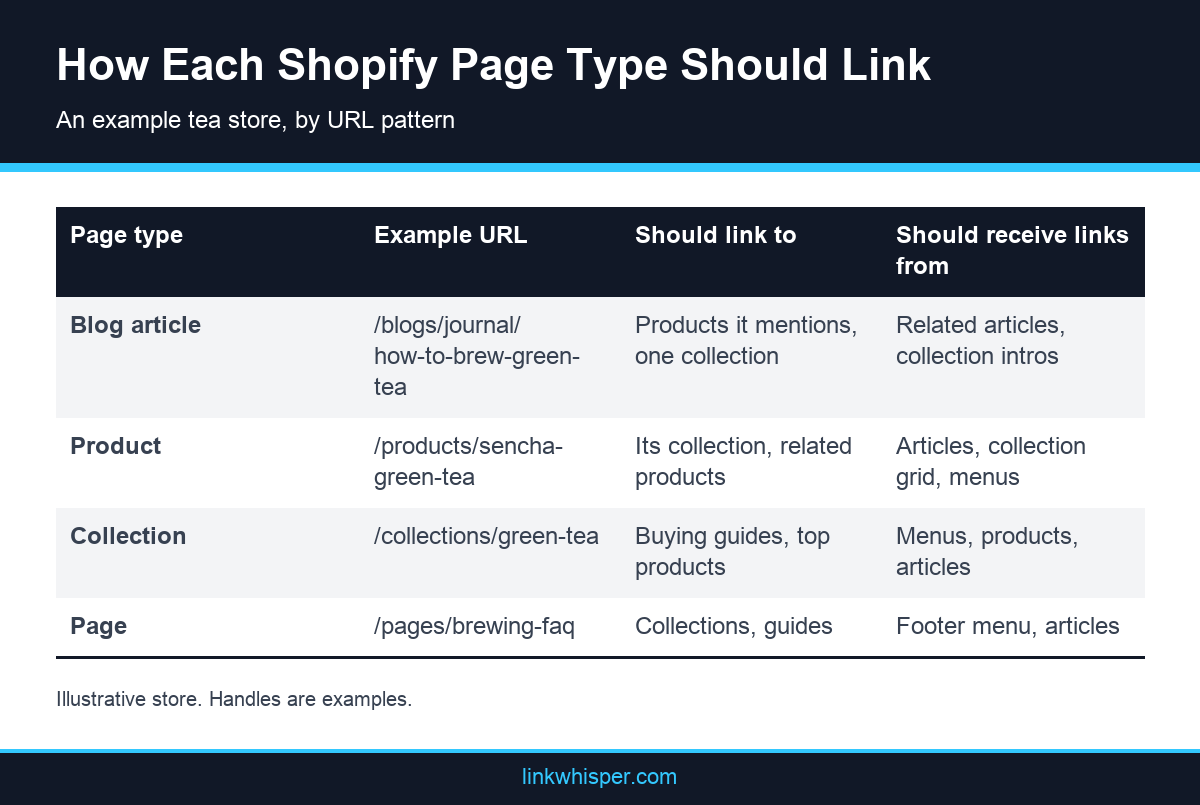
Think of your store as three page types with different jobs. Blog articles attract and educate. Collections group choices and help shoppers compare. Products close the sale. Good ecommerce internal linking connects all three in both directions, so no page type becomes a dead end. Google describes this kind of structure in its notes on ecommerce site navigation structure.
Blog to product
Each article should link to the specific products it mentions, at the point where the reader needs them. Take an example tea store. An article at /blogs/journal/how-to-brew-green-tea explains water temperature. The sentence about cooler water is the right place to link the variable temperature kettle at /products/variable-temp-kettle. The sentence about leaf choice can link a named tea such as /products/sencha-green-tea. Keep it to the products the article genuinely discusses. Two or three relevant product links usually serve the reader better than a long list at the bottom of the post.
Product to collection
Product pages should send shoppers sideways and upward. Sideways means related or complementary products. Upward means the collection the product belongs to, such as /collections/green-tea. Many themes add a breadcrumb or a collection link automatically, but it is worth checking. A short line in the product description, for example a note that this sencha is part of the green tea range, adds a contextual link the theme does not. It also gives a shopper who dislikes this product an easy route to the alternatives, instead of the back button.
Collection to blog
Collection pages are commercial hubs, and they often carry thin text. A short introduction above the product grid can link to the one or two guides that help a buyer choose. On /collections/green-tea, a sentence pointing to the brewing guide helps an unsure visitor and gives the article a link from a strong page. This closes the loop. Blog articles feed products, products feed collections, and collections send uncertain shoppers back to the content that answers their questions. Every page then has links coming in and going out.
Anchor Text on Ecommerce Pages
Anchor text is the visible, clickable text of a link. Google uses it to understand the page on the other end, so vague anchors waste the link. Words like here or this page tell nobody anything. A good anchor describes the destination in a few natural words.
On a store, the best anchors usually name the product or the category. Linking the words variable temperature kettle to the kettle product page is clear for a shopper and for a search engine. Linking the words loose leaf green teas to the green tea collection works the same way. Both read as part of the sentence rather than as an advert.
Avoid using the exact same commercial phrase for every link to a page. If forty articles link to one collection with identical anchor text, it looks mechanical and reads badly. Vary the wording the way a person would. One article might say our green tea range, another might say Japanese green teas, and a third might name a single product within it.
Avoid stuffing too. A paragraph that links five keyword phrases to five products is hard to read and rarely helps. Pick the one or two links that serve the reader at that moment. Product names, category names and plain descriptions of a benefit are the safest choices. If you want more examples, the Link Whisper guide to writing descriptive anchor text goes into detail.
A Shopify internal linking app with keyword-based linking needs the same care. Choose keywords that are specific, such as a full product name, rather than broad words that appear in every article. Otherwise links can land in places where they distract the reader instead of helping them.
Finally, check where the link sits. A link placed in the sentence where the product is discussed gets more attention than one dropped in a list at the end. It also makes the context clearer. Context-based placement is the difference between a link that gets used and a link that simply exists. Treat anchor text and placement as one decision, made at the moment you write the sentence.
Finding Orphaned Products and Collections
An orphan is a page with no internal links pointing to it. Shoppers cannot browse to it, and search engines may only find it through the sitemap. Shopify generates sitemap.xml automatically, so an orphan may still be listed there. Being listed is not the same as being well linked. If the idea is new to you, read what makes a page an orphan before you start.
On Shopify, orphans usually appear in a few predictable ways. A product is removed from its only manual collection. An automated collection condition changes, so products with an old tag no longer qualify. A seasonal collection is taken out of the menu after the season ends. A landing page under /pages/ was built for a campaign and never linked from anywhere permanent. Each change is small and sensible, but the side effect is invisible.
To find orphans by hand, start with a list of every product, collection and page you want to rank. You can export products from the admin. Then check each one for at least one link from a menu, a collection grid or an article. For a small catalogue this takes an afternoon. For a large one it becomes a spreadsheet project that is out of date as soon as it is finished.
Pay special attention to collections. A collection that is missing from every menu and every article can still look healthy in the admin, because it is full of products. From the outside, nobody can reach it except through search.
A visual audit can help. The free visual map of how your pages connect on the Link Whisper site shows link relationships as a diagram, which makes isolated pages easier to spot.
Once you have the list, decide what each orphan deserves. Products you still sell should go back into at least one collection and be linked from a relevant article. Collections worth keeping should appear in a menu or in the introduction of a parent collection. Pages that no longer serve a purpose can be retired properly, with a redirect, which leads to the next problem.
Broken Links After Handle Changes and Deleted Products
Broken internal links are links that point to a page that no longer exists. Visitors who follow them reach a 404 page, and the journey stops. On Shopify, they almost always come from one of three events: a changed handle, a deleted product or a product set back to draft.
When you edit a product or page handle in the admin, Shopify offers a checkbox to create a URL redirect from the old address. Leave it ticked. You can also manage redirects in the admin under URL redirects. Google explains how it treats permanent moves in its page on redirects and Google Search.
Deleting a product is different. Shopify does not create a redirect when a product is deleted, so every article and page that linked to it now points at a 404. Draft or unpublished products also return 404 to visitors. If you retire a product, add a redirect by hand to the closest replacement or to its collection. Then update the links in your articles, so they point straight to the new page instead of relying on the redirect.
Redirects fix the visitor experience, but they do not clean up your content. An article that still links to /products/old-kettle through a redirect is one more hop than it needs to be. Over time those hops pile up, and some redirects get removed by accident. The tidy approach is to update the link at the source.
Finding these links by hand means opening every article and checking every link. That is realistic for ten posts and unrealistic for two hundred. A regular scan is far more reliable. The Link Whisper site has a free broken link scanner you can run on any URL, and the article on why broken internal links hurt a site covers the wider SEO side.
Doing It by Hand vs With a Shopify Internal Linking App
Everything in this guide can be done by hand. You can open each article in the editor, highlight a phrase, insert a link, and keep a spreadsheet of what links where. For a store with a few products and a few posts, that is a fine place to start, and it teaches you how your content connects.
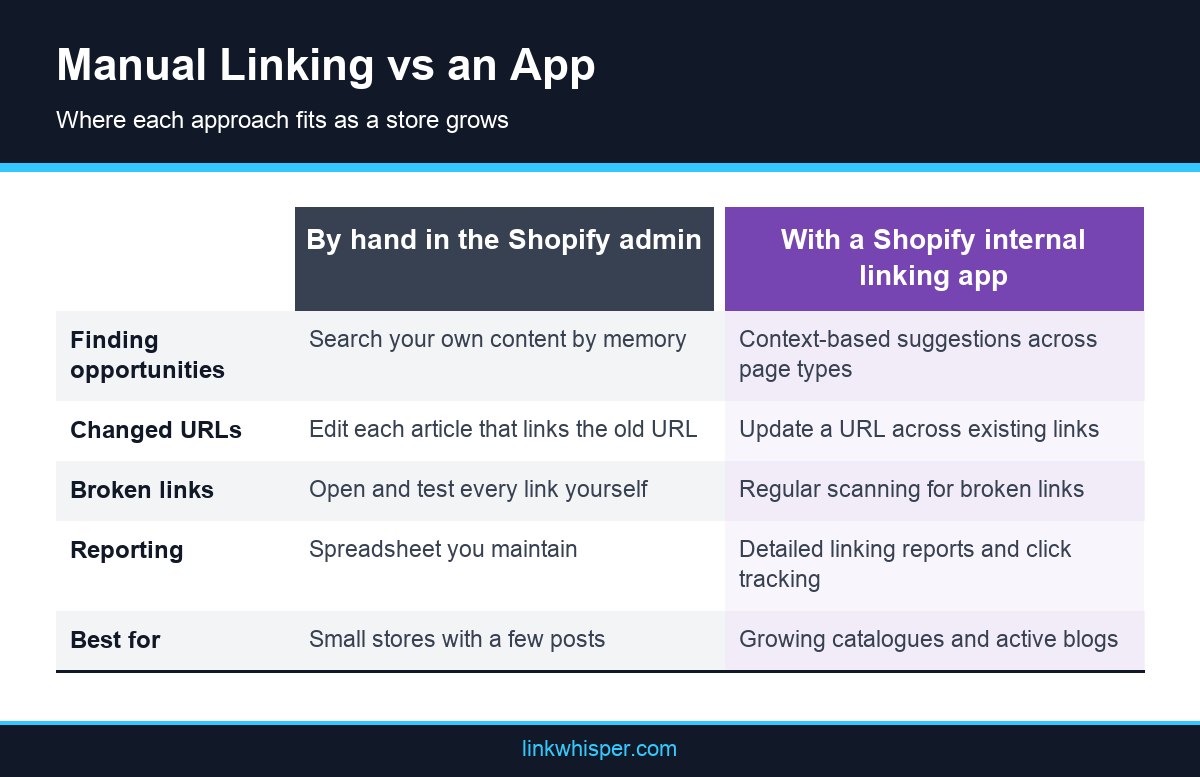
The manual approach breaks down as the store grows. Each new article needs links to existing products, and older articles need links to the new one. Each handle change or deleted product can break links you no longer remember adding. The work is not difficult. It is repetitive and easy to postpone, and links that are not tracked tend to decay.
This is the gap a Shopify internal linking app is meant to fill. When you compare options, look for a few things. The app should suggest links based on the context of your content, across products, collections, pages and blog posts. It should let you update or remove links in bulk when a URL changes. It should scan for broken links on a schedule. It should report on how pages are linked, so you can spot weak spots. Some tools describe their suggestions as AI-powered. Judge them on how relevant the suggestions are to your own catalogue.
The Link Whisper Shopify internal linking app covers those points. It gives context-based linking suggestions for products, collections, pages and blog posts. It also offers keyword-based automatic linking, where you set keywords and it links matching mentions. You can update a URL across existing links, delete links at the press of a button, and read detailed linking reports. It scans regularly for broken links and tracks clicks on internal links. It works inside the Shopify admin and with DropInBlog, and you can find it on the Link Whisper listing in the Shopify App Store.
Whichever route you take, keep a human in the loop. Review suggestions before accepting them, and keep keyword rules narrow so links appear only where they genuinely help. If you would rather hand the work to a team, Link Whisper also runs a hands-on linking service delivered by specialists.
A Repeatable Monthly Internal Linking Workflow
Internal linking is not a one-time project. Products launch, collections change and new articles go live every month. A short, fixed routine keeps your links current without turning into a large clean up later. The steps below work whether you link by hand or use an app.
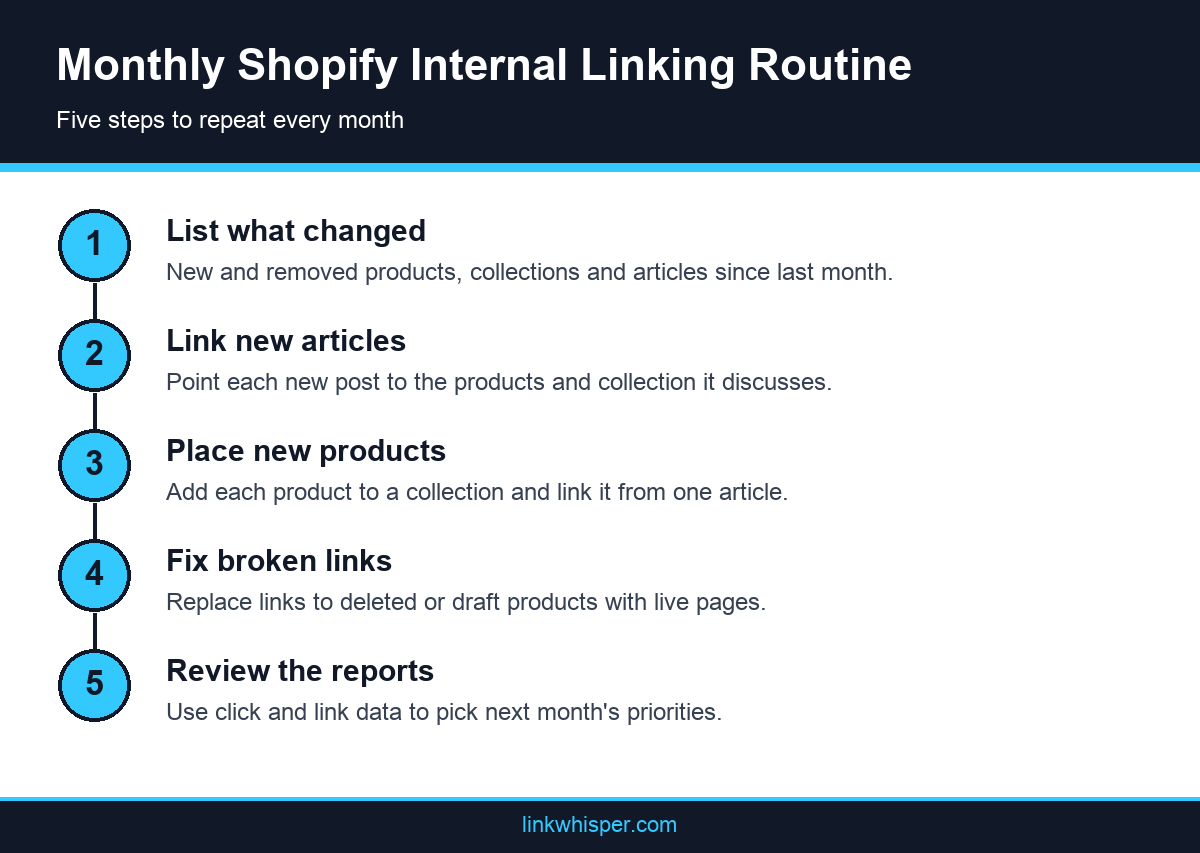
Start with what changed. List the products, collections and articles added or removed since last month. New pages need links in, and removed pages need their old links fixed. This list keeps the rest of the session focused.
Next, link the new content. Each new article should link to the products and the collection it discusses. Each new product should appear in at least one collection and be linked from one relevant article. Each new collection should appear in a menu or a parent collection introduction.
Then check for problems. Look for broken links caused by deleted or drafted products, and for redirects that should be replaced with direct links. Check that no product you still sell has become an orphan. Finally, review what worked. Click data and linking reports show which internal links people actually use, and which important pages still have few links pointing to them. Use that to choose next month’s priorities. If you want to compare the tools that help with this, see our notes on choosing an SEO app for Shopify.
If you use a Shopify internal linking app, the routine gets shorter. Suggestions help with linking new articles and products, scans handle the broken link check, and reports support the review. The thinking stays the same. Only the legwork changes.
Conclusion
Internal linking on Shopify comes down to a few habits. Connect blog articles to the products they mention, connect products to their collections, and give collections a route back to helpful content. Check for orphans and broken links every month, especially after handle changes or deleted products. You can do all of this by hand, and a Shopify internal linking app makes the routine faster as your catalogue grows. If you want to try that approach, start a free trial of the Link Whisper app for Shopify stores and run your first scan today.
Frequently Asked Questions
What does a Shopify internal linking app do?
It helps you add and manage links between products, collections, pages and blog posts. Typical features include link suggestions, bulk URL updates, broken link scans and reports showing how pages are linked, so you spend less time searching by hand.
Does Shopify add internal links automatically?
Partly. Menus, collection grids, breadcrumbs and related product blocks create links through your theme. Blog articles get no automatic links to products, so any link from a post to a product or collection must be added by you or an app.
How many internal links should a Shopify blog post have?
There is no fixed number. Link each product and collection the article genuinely discusses, at the point where it is mentioned. For most posts that means a handful of relevant links rather than a long list of products at the end.
Where should I place internal links in a Shopify article?
Place links inside the sentence that discusses the product or topic, using descriptive words as the anchor. Early, in-context links tend to be more useful than lists at the end. Our guide to link placement and anchors explains more.
What happens to links when I change a product handle?
Shopify offers a checkbox to create a redirect from the old URL when you change a handle. Keep it ticked. Then update the links in your articles so they point straight to the new URL instead of passing through the redirect.
Does deleting a product create a redirect in Shopify?
No. Deleting a product does not create a redirect, so links to it lead to a 404 page. Add a redirect by hand under URL redirects in the admin, then update any articles that still link to the old product.
How do I find orphaned products in my Shopify store?
List every product, collection and page you want found, then check each for links from menus, collection grids or articles. Products dropped from every collection and menu are the usual orphans. A visual link map makes isolated pages easier to spot.
Is internal linking part of product discovery SEO?
Yes. Product discovery SEO is about helping shoppers and search engines reach the products you sell. Internal links from articles, collections and related products create those paths, so pages that matter commercially are never more than a few clicks away.
Can I try Link Whisper on Shopify before committing?
Yes. The Link Whisper app on the Shopify App Store offers a free trial, so you can test its suggestions and reports on your own store. For general store tips first, see these practical Shopify SEO tips.
Check if your site has the same issues.
Run a free audit right now. See your orphaned pages, broken links, and link health score in 60 seconds.
Check My Site