Contents
- 1 Key Takeaways
- 2 What Makes a Link Scan Heavy on Your Server
- 3 A Gentle Schedule for Catching Dead Links
- 4 Putting Repairs in the Right Order
- 5 Making Sense of a Long Scan Report
- 6 Where Links Break on Food, Travel and Store Sites
- 7 Conclusion
- 8 Frequently Asked Questions
- 8.1 Which broken link checker WordPress setup suits a small blog?
- 8.2 Can a link checking plugin make my site slower?
- 8.3 How frequently should WordPress broken links be checked?
- 8.4 Are dead links bad for search rankings?
- 8.5 What should I repair first after a scan?
- 8.6 When should I redirect instead of removing a link?
- 8.7 Will a free online scan work on any WordPress site?
- 8.8 Why do links break so often on WordPress?
- 8.9 Does Link Whisper include a broken link report?
Many site owners install a broken link checker WordPress can supposedly run in the background, then watch the scan itself drag their pages down. The real question is not which tool to pick but where the crawling happens. Work done on your own server competes with live readers. Work done from outside does not, which is why our free internal link checker runs in the browser.
Below you will see what makes some checks heavy, a gentle schedule that still catches dead URLs, a sensible repair order, and what food, travel and store owners should watch.
Key Takeaways
- Heavy checks that run on your host share PHP workers with readers, so move them outside or into quiet hours.
- Repair internal 404s before anything else, then cited sources and links that lead to sales.
- One baseline scan, a monthly pass and a fresh scan after every structural change keep problems small.
What Makes a Link Scan Heavy on Your Server
Traditional checking plugins act like a tireless robot living inside your hosting account. They request every URL on a loop, log each answer in the database and hold PHP workers while they wait. Readers need those same workers, so a busy afternoon plus a full crawl can turn a fast site sluggish without warning.
Picture a blog with 600 articles, each holding 25 links. That adds up to 15,000 checks every time the plugin wakes up. If it wakes every few hours, your database fills with status rows. Your server spends real effort on chores no reader ever sees. Broken link plugin performance suffers most on cheap shared plans, where a handful of PHP workers serve everyone.
Some hosts respond by throttling the account or asking you to deactivate the plugin. Neither outcome helps your rankings. Before you settle on a broken link checker WordPress hosts will tolerate, ask where it crawls from. A smarter fix keeps the checking but changes the location. Our browser based Broken Link Checker visits your public pages from outside, the way a reader would. Your hosting simply serves pages and never runs the crawl itself.
Search engines notice server strain as well. Google’s documentation on HTTP status codes and network errors explains that Googlebot slows its crawling when a site keeps returning server errors. A noisy internal scan can therefore cost you crawl attention on top of speed. That is a poor trade for a maintenance task.
A Gentle Schedule for Catching Dead Links
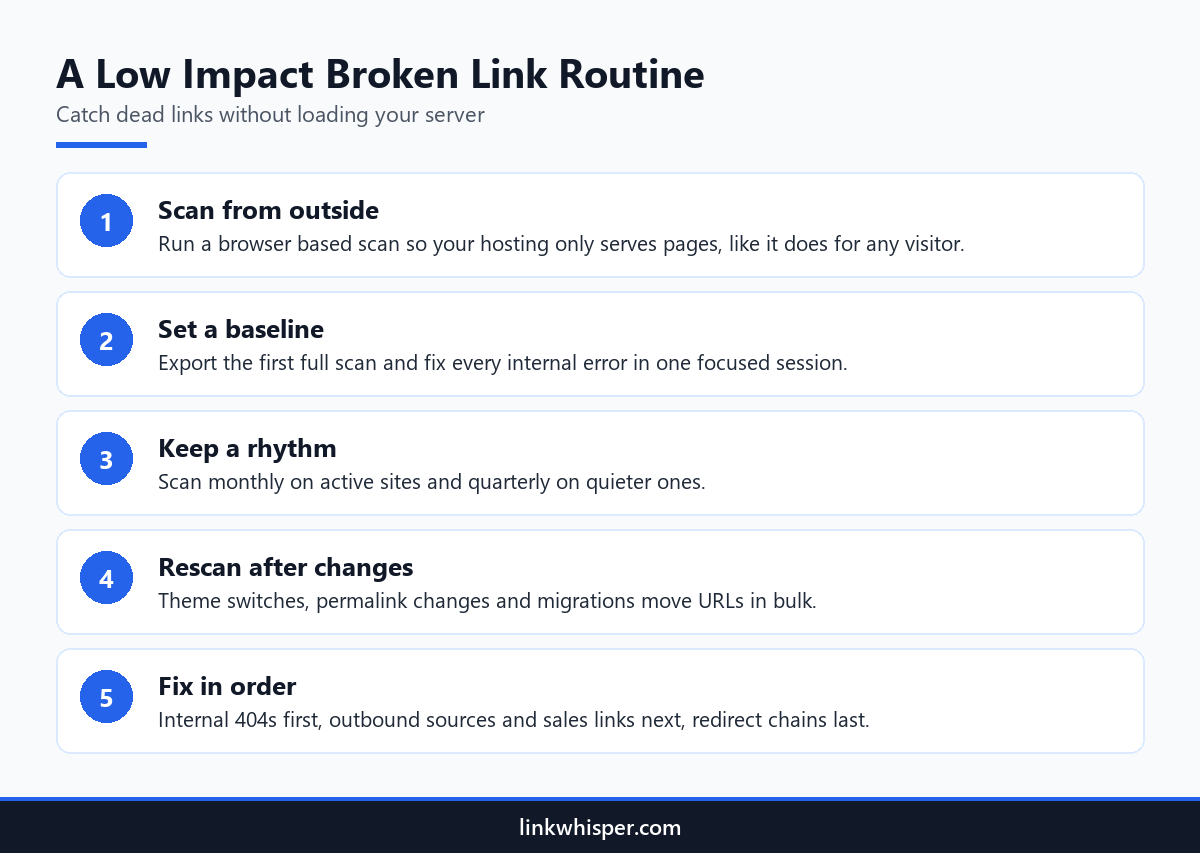
Constant scanning is unnecessary. Five habits cover nearly every case: scan from outside, record a baseline, keep a steady rhythm, rescan after structural changes and repair links in a fixed order. Together they turn link maintenance into a short recurring chore rather than an emergency that lands on your desk after traffic drops.
Begin with one complete crawl and save the export. That file becomes your baseline. Count internal errors and outbound errors separately, since they need different fixes. Block out a single afternoon to clear the internal list. Then send the export to every writer and editor. People repeat fewer mistakes once they see what broke last time.
Next, choose a cadence that matches how often you publish. A blog that posts weekly benefits from a monthly pass. A brochure site that rarely changes can wait a full quarter. Add an unscheduled scan whenever you switch themes, edit permalinks, merge categories or move hosts. Those jobs rewrite many URLs in a single afternoon.
Does your broken link checker WordPress install crawl from your own hosting? Then set it to run overnight for your main audience, when traffic is lowest. Finish every scan by working through our walkthrough on fixing the errors you find. That way the report becomes real repairs instead of another forgotten spreadsheet.
Putting Repairs in the Right Order
Every dead link costs something, but the bill varies. Internal 404s waste authority you already earned and sit entirely under your control. Outbound links that back up claims or drive purchases rank second. Redirect chains and stale jump links still function, so they can safely wait for the next routine maintenance session, provided someone records them clearly.
Start inside your own site. When a post links to a deleted page, readers hit a dead end and crawlers stop following the trail. The authority that link should pass simply disappears. Point it at the best current page, or delete the link when nothing suitable exists.
Move outward next. Give priority to citations and product links, because those carry trust and revenue. Look for the page at its new address on the source site before giving up. An archived copy can rescue an old citation, yet a working page always serves readers better.
Leave redirect chains for last. They load, just slowly, because every extra hop adds a round trip. Repair them by linking directly to the final URL rather than stacking one more redirect. Note each change in a simple log so the following scan reads faster.
Making Sense of a Long Scan Report
A first report with hundreds of rows looks alarming, yet nearly every row falls into one of four familiar types. Learn what each type means and you can triage the whole file over a single coffee. Aim for a short list of jobs your team will actually finish, not a flawless spreadsheet.
Internal 404 rows mean one of your pages links to something you deleted or renamed. Treat these as urgent, since each takes a minute to correct. Outbound 404 rows mean a site you cited has dropped or moved the page. Search that site for the new address before you remove anything.
Redirect chain rows still deliver readers to the right place, only through two or more hops. Each hop adds a little delay. Dead anchor rows point at a heading that no longer exists. The jump then lands at the top of the page and leaves the reader hunting.
Group rows by the post that contains them rather than by error type. You then open each post once and clear all its problems in one visit. Label every row as fixed, redirected or removed. Keep the finished file beside your baseline so you can compare progress.
Where Links Break on Food, Travel and Store Sites
The schedule works everywhere, yet each kind of site breaks in its own spot. Recipe archives crack after design changes, travel guides lose their booking partners and shops lose product pages. When you know your weak points, each new report tells you exactly where to start instead of leaving you scrolling through every row.
Food bloggers tend to feel the pain right after a redesign or a slug cleanup. A roundup of fifteen recipes can lose every link from one URL change. Start each scan with those roundups. Then test recipe card print buttons and jump to recipe links.
Travel writing ages differently. Hotels rebrand, tour companies fold and booking partners retire whole sections. That leaves old destination guides that still rank but send readers nowhere. Travel bloggers should review outbound links every month and replace dead partners with active ones.
On WooCommerce stores, a dead product link turns a ready buyer away. Retired products cause most of these errors. Send the old product URL to the nearest category with a 301 redirect. Then update every internal link still aiming at it. Run an extra scan after any catalogue tidy up, whatever the calendar says.
Conclusion
A good broken link checker WordPress site owners rely on should find dead URLs without stealing resources from readers. Crawl from outside your hosting, save a baseline, scan monthly, rescan after structural changes and repair internal links before anything else. If you would rather track errors from inside WordPress, Link Whisper includes a broken link report next to its internal linking tools. Run a free scan of your site today. Then decide how much automation your growing site really needs.
Frequently Asked Questions
Which broken link checker WordPress setup suits a small blog?
A small blog rarely needs anything running around the clock. One free browser scan each month will surface dead internal and outbound links without touching your server. Add a plugin later if you prefer seeing reports inside WordPress itself.
Can a link checking plugin make my site slower?
It can. Plugins that crawl every page from your own hosting on a tight timer write constantly to the database and occupy PHP workers. Shared plans feel that most, so move scans outside or run them overnight.
How frequently should WordPress broken links be checked?
A monthly pass suits most blogs and shops that publish regularly. Slower sites can stretch that to once a quarter. Add an extra scan after theme switches, permalink edits, category merges or host moves, since those change many URLs together.
Are dead links bad for search rankings?
A single dead link is minor, but large numbers waste crawl attention and stop authority from flowing between pages. For a fuller answer, read our breakdown of how 404 pages affect SEO and the cases where they are harmless.
What should I repair first after a scan?
Repair internal links first because you control both the source and the destination, and they carry your own authority. Next come outbound links supporting claims, citations or products. Redirect chains can sit until your regular maintenance session.
When should I redirect instead of removing a link?
Edit the link to a working page whenever a good match exists. Add a 301 redirect on the old URL if external sites still point at it. Remove the link only when no destination would genuinely help the reader.
Will a free online scan work on any WordPress site?
Yes, provided the pages are public. The scan crawls your site the way a visitor or search crawler would, so it cannot reach content behind a login or pages you have blocked from crawling in your settings.
Why do links break so often on WordPress?
Most breakage follows a big change: new permalinks, deleted posts, renamed categories, a fresh theme or a migration. Outbound links also fail when partner sites close or reorganise. That is why errors usually show up in clusters rather than one at a time.
Does Link Whisper include a broken link report?
It does. The Link Whisper plugin scans internal and external links across your WordPress site and flags 404s in a dedicated report. If you only want a quick check, the free scan on linkwhisper.com needs no account and no install.
Check if your site has the same issues.
Run a free audit right now. See your orphaned pages, broken links, and link health score in 60 seconds.
Check My Site